openstatus
How to Deploy a Private Probe on Cloudflare Containers
Problem
Section titled “Problem”You need to monitor internal services that are not accessible from the public internet, or you want to run checks from your own infrastructure for compliance or performance reasons. You need a lightweight, serverless way to run these monitoring probes without managing virtual machines.
Solution
Section titled “Solution”Deploy the openstatus private location probe as a serverless container using Cloudflare Containers. This allows you to run monitoring checks from within your own network infrastructure, managed by Cloudflare. This guide will walk you through the entire process, from creating the private location in openstatus to deploying the container.
The code for the Cloudflare Worker template is available on GitHub.
Prerequisites
Section titled “Prerequisites”- A Cloudflare account
- An openstatus account
pnpmanddockerinstalled on your local machine
Step-by-step guide
Section titled “Step-by-step guide”1. Create a private location in openstatus
Section titled “1. Create a private location in openstatus”First, you need to create a private location in your openstatus workspace to get an access key.
- Go to the openstatus dashboard.
- Click on Private locations in the sidebar.
- Click Create Private Location.
- Give it a human-readable name (e.g., “Cloudflare-EU”).
- Copy the generated token and save it somewhere secure.
- Click Submit to save the new private location.
2. Set up the Cloudflare project
Section titled “2. Set up the Cloudflare project”Next, create a new Cloudflare project using the containers template.
pnpm create cloudflare@latest --template=cloudflare/templates/containers-template3. Pull and tag the probe Docker image
Section titled “3. Pull and tag the probe Docker image”Pull the official openstatus private location image from Docker Hub. You must specify the linux/amd64 platform, as this is what Cloudflare Containers supports.
# Pull the imagedocker pull --platform linux/amd64 ghcr.io/openstatushq/private-location:latest
# Tag the image for Cloudflare (you cannot use the 'latest' tag)docker tag ghcr.io/openstatushq/private-location:latest openstatus-private-location:v1
4. Push the image to Cloudflare Container Registry
Section titled “4. Push the image to Cloudflare Container Registry”Push the tagged image to your Cloudflare account’s container registry.
pnpm wrangler containers push openstatus-private-location:v15. Configure wrangler.toml
Section titled “5. Configure wrangler.toml”Now, configure your Cloudflare project to use the container and run it on a schedule.
- Open the
wrangler.tomlfile. - Add a
[containers]section to link the image you pushed. ReplaceGENERATED_IDwith the actual ID from the previous step’s output.[containers]image = "registry.cloudflare.com/GENERATED_ID/openstatus-private-location:v1" - Add a
triggerssection to run the worker on a cron schedule. This keeps the container alive, as Cloudflare Containers automatically scales to zero.triggers = { cron = ["*/2 * * * *"] } # Runs every 2 minutes
6. Configure the worker
Section titled “6. Configure the worker”Update the worker script (index.ts) to start the container with the correct environment variables.
- Set the
sleepAftervalue to control how long the container runs after being invoked.sleepAfter = "150s"; - Update the
scheduledfunction to pass your openstatus key to the container.async scheduled(_controller: any, env: Env) {try {const container = getContainer(env.MY_CONTAINER);await container.start({envVars: {OPENSTATUS_KEY: env.OPENSTATUS_KEY,},});} catch (e) {console.error("Error in scheduled task:", e);}return new Response("ok");},
7. Add your openstatus key as a secret
Section titled “7. Add your openstatus key as a secret”Securely provide your private location token to the Cloudflare worker.
# Paste the token you saved in Step 1 when promptedpnpm wrangler secret put OPENSTATUS_KEY8. Deploy the application
Section titled “8. Deploy the application”Finally, deploy the worker and container to Cloudflare.
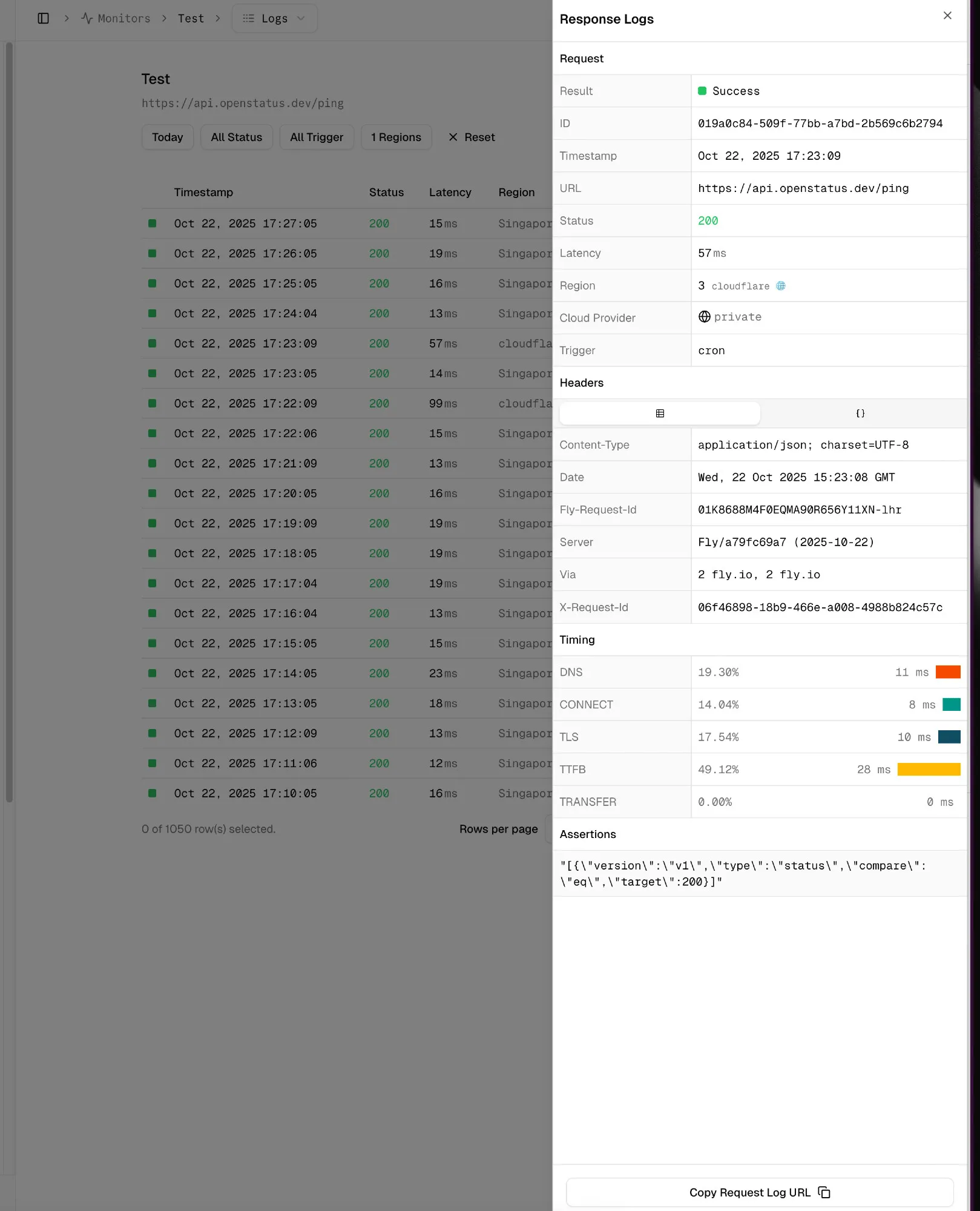
pnpm wrangler deployYour private location probe is now running on Cloudflare Containers and will start picking up monitoring jobs from your openstatus workspace.
Verify the deployment
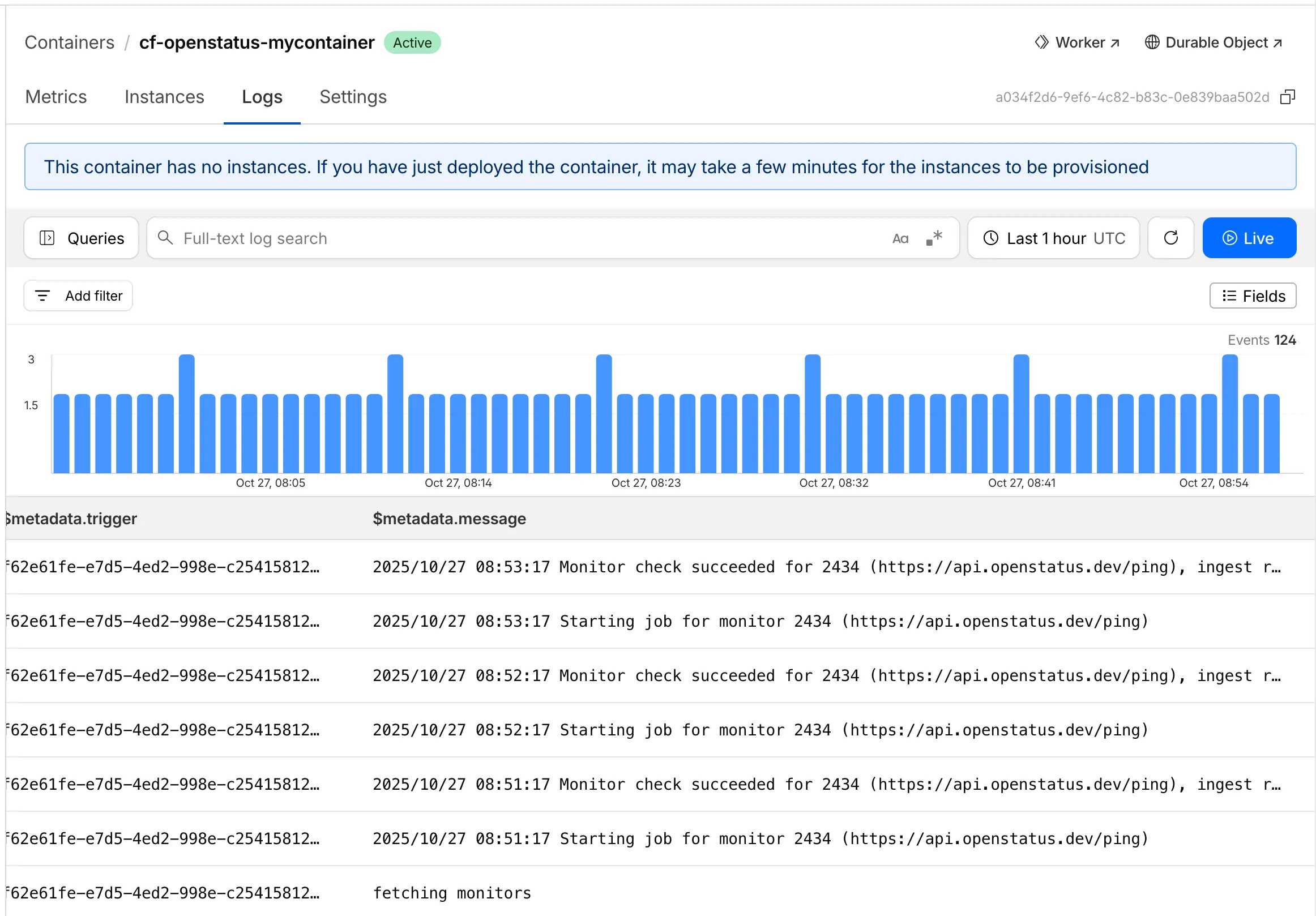
Section titled “Verify the deployment”You can check the logs of your Cloudflare Worker to see the probe in action. In your openstatus dashboard, the private location should now show as connected.